
Chapter 15 · 15.7
Redis
Redis is a super fast in-memory storage. Websites use it as a cache: frequently used data from the database is kept ready in Redis, so pages load faster and your database has less work to do. In WordPress, this is called object cache.
Redis is included with Power Webhost Three, Power Webhost Four and Power Reseller. WebHost One and Two don't have Redis.
Turning on Redis
- In DirectAdmin, under Advanced Features, click Redis.
- Under Status, you'll see This account has Redis disabled. Click ENABLE (1).
- Under Path to redis socket file (2), you'll find the address of your Redis, for example /home/username/.redis/redis.sock. You'll need this later if required.
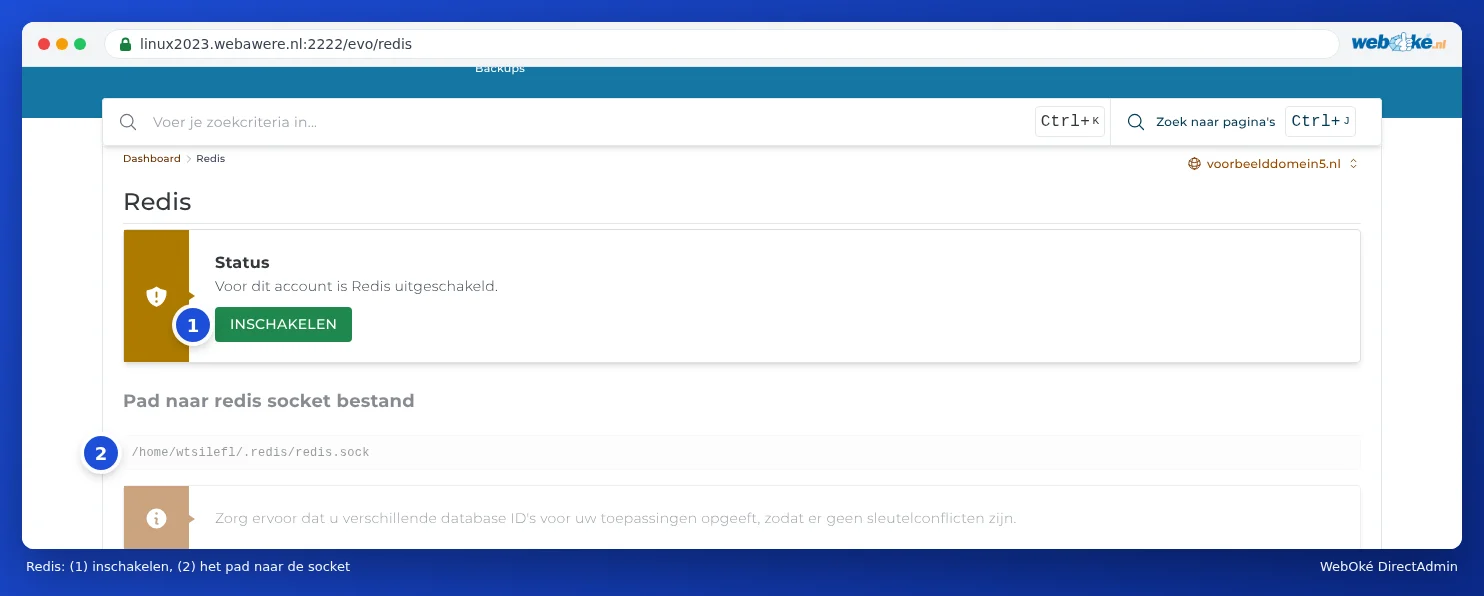
With us, Redis runs per package via that socket file, not via a port and without a password. Only your package can access it.
Using Redis in WordPress
- In Select PHP version, turn on the redis extension (see Enabling and disabling PHP extensions).
- In WordPress, open the settings for LiteSpeed Cache, choose Cache and the Object tab.
- Turn on Object Cache and choose Redis as the method.
- Under Host, enter the path to the socket, under Port enter 0, and leave the username and password fields empty.
- Save. LiteSpeed Cache will show in the status whether the connection works.
Using a different plugin, such as Redis Object Cache? Then in wp-config.php, set define('WP_REDIS_SCHEME', 'unix'); and define('WP_REDIS_PATH', '/home/username/.redis/redis.sock');.
Tip: Using Redis for more than one website or app in your package? Give each site its own database number (in LiteSpeed Cache: Redis Database ID, for example 0, 1, 2). That way, the sites won't interfere with each other. DirectAdmin points this out too.
Should I use Redis?
A small website doesn't benefit much from it; the page cache of LiteSpeed Cache does most of the work there. Redis mainly helps with webshops, sites with many logged in users and sites with a heavy database. If you don't notice a difference, feel free to turn it off again.