
Chapter 4 · 4.6
A different folder for your website (document root)
The document root (in DirectAdmin Docroot or Document Root) is the folder that visitors see when they open your website. For your main domain, this is domains/yourdomain.nl/public_html. Sometimes you want a different folder, for example because your website is in a subfolder or because a framework like Laravel uses a folder called public.
For a subdomain: choose Custom
For a subdomain, you choose the folder yourself: when creating it, or later with the pencil icon.
- Go to Subdomain Management and click ADD SUBDOMAIN.
- Enter the subdomain.
- For Document Root, choose Custom and enter the folder. The folder must be within your package, for example /domains/yourdomain.nl/public_html/newsite.
- Click ADD SUBDOMAIN.

This lets you, for example, point test.yourdomain.nl to a folder containing a new version of your site, or to the public folder of a Laravel project.
Changing the folder of an existing subdomain
- Go to Subdomain Management.
- Click the pencil icon in the row of the subdomain.
- The Change Document Root window opens. Enter the new folder under Document Root.
- Click SAVE.

The files don't move along automatically: place them in the new folder yourself, for example using File Manager (see Opening File Manager: the directories in your package).
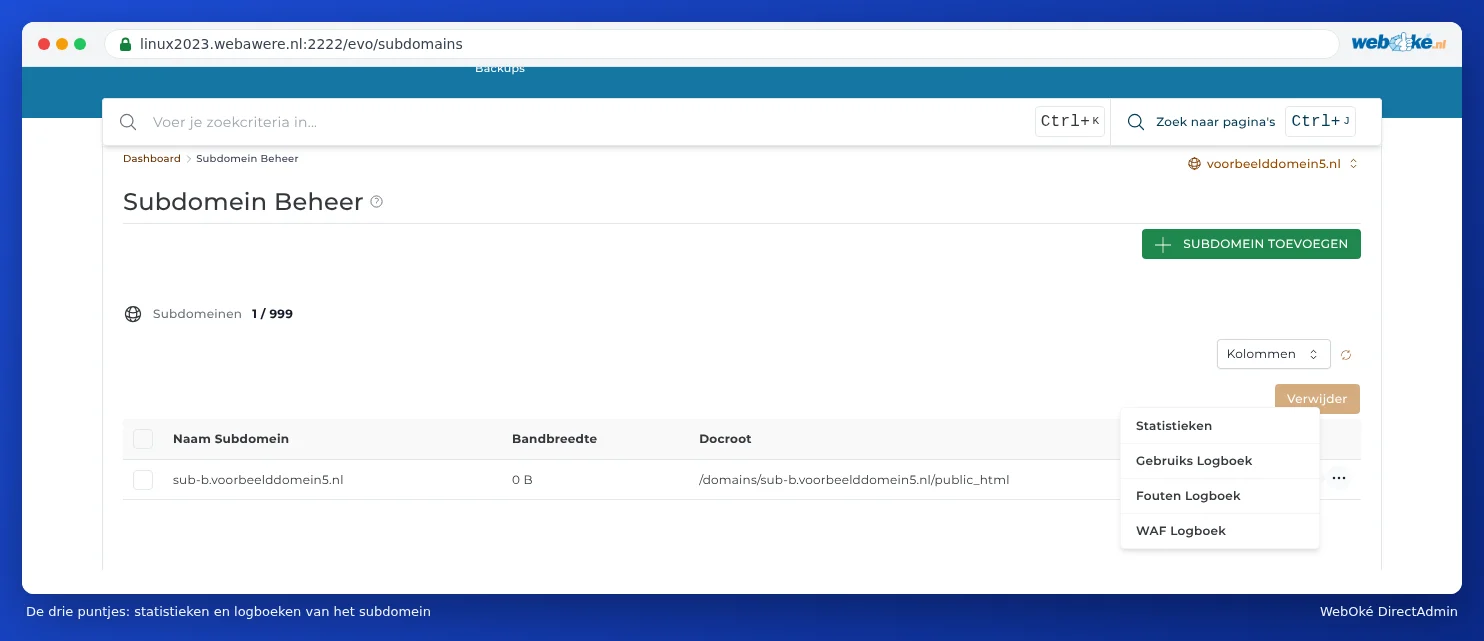
Via the three dots in the same row, you can open the Stats, Usage Log, Error Log and WAF Log of the subdomain (see Site summary & logs: the error log and the access log).
For your main domain: here's how to solve it
You can't change the document root of your main domain yourself: it's always public_html. If you need a different folder, you have these options:
- Put the website in public_html itself. This is usually the simplest option. Move the files in File Manager (see Opening File Manager: the directories in your package).
- Redirect to the subfolder with .htaccess. Place a .htaccess file in public_html with a rule that internally redirects all requests to the subfolder. Visitors won't notice anything. For Laravel, an example like this can be found in the Laravel documentation.
- Ask us. If you can't figure it out, create a ticket. Mention the domain and the folder you want to use.
Please note: Don't put files containing passwords (such as an .env file) directly in public_html. Everything in public_html can in principle be accessed via the internet.