
Chapter 15 · 15.10
A checklist with check boxes in a spreadsheet
A to-do list, checklist or attendance list with boxes to tick: Euro-Office can do that. On the Insert tab, you'll find the Check box button.
Inserting a check box
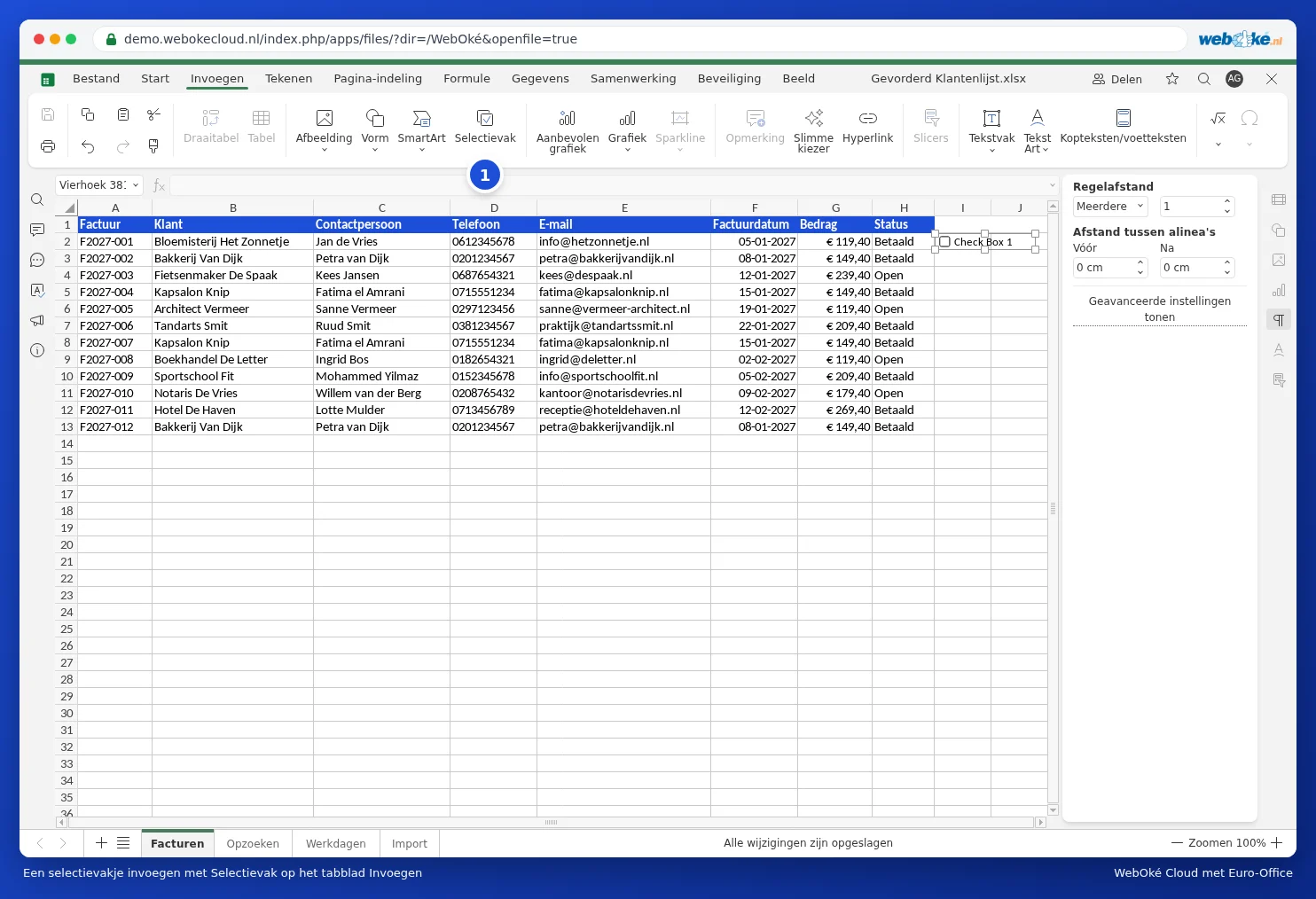
- Click the cell where the box should go, for example I2 in the Checked column.
- On the Insert tab, click Check box (1).
- A box appears in the cell. Click it to tick or untick it.
Calculating with the ticks
A check box is a small object that sits on top of the cell. If you want to calculate with the ticks, link the box to a cell: right-click the box and choose Cell snapping. That cell returns TRUE if the box is ticked and FALSE if it's empty (Euro-Office displays logical values in English). You can then, for example, count how many are done: =COUNTIF(J2:J13,TRUE), or use conditional formatting (see Colour the whole row when the invoice is paid) to shade a ticked row grey.
Pitfalls and alternatives
- Each box is a separate object. For a long list, copy the box and paste it into the other rows, then check the linked cell for each box afterwards.
- If you sort the list, the boxes don't always stay neatly with their row. For lists you sort or filter often, a drop-down list is more practical: use Data Validation to create a list with Yes;No or ☐;☑ (see Data validation and drop-down lists). That value actually sits in the cell and moves with it when you sort or filter.
- Check boxes from Excel remain visible when opened in Euro-Office.