
Chapter 11 · 11.5
Tables: lists and small databases without a spreadsheet
Available in packages with Office. You can use Tables if you have your own Office Suite licence. Users in your package without a licence won't see the app. The administrator of your package assigns licences in My WebOké, see Assigning and ordering extra Office licences.
With Tables, you create clear lists with fixed columns: a membership list, an inventory, a customer list or an overview of holiday requests. Unlike a spreadsheet, each column has a fixed type of data, such as a date, a dropdown list or a checkbox. This keeps the list tidy, even when several people work in it.
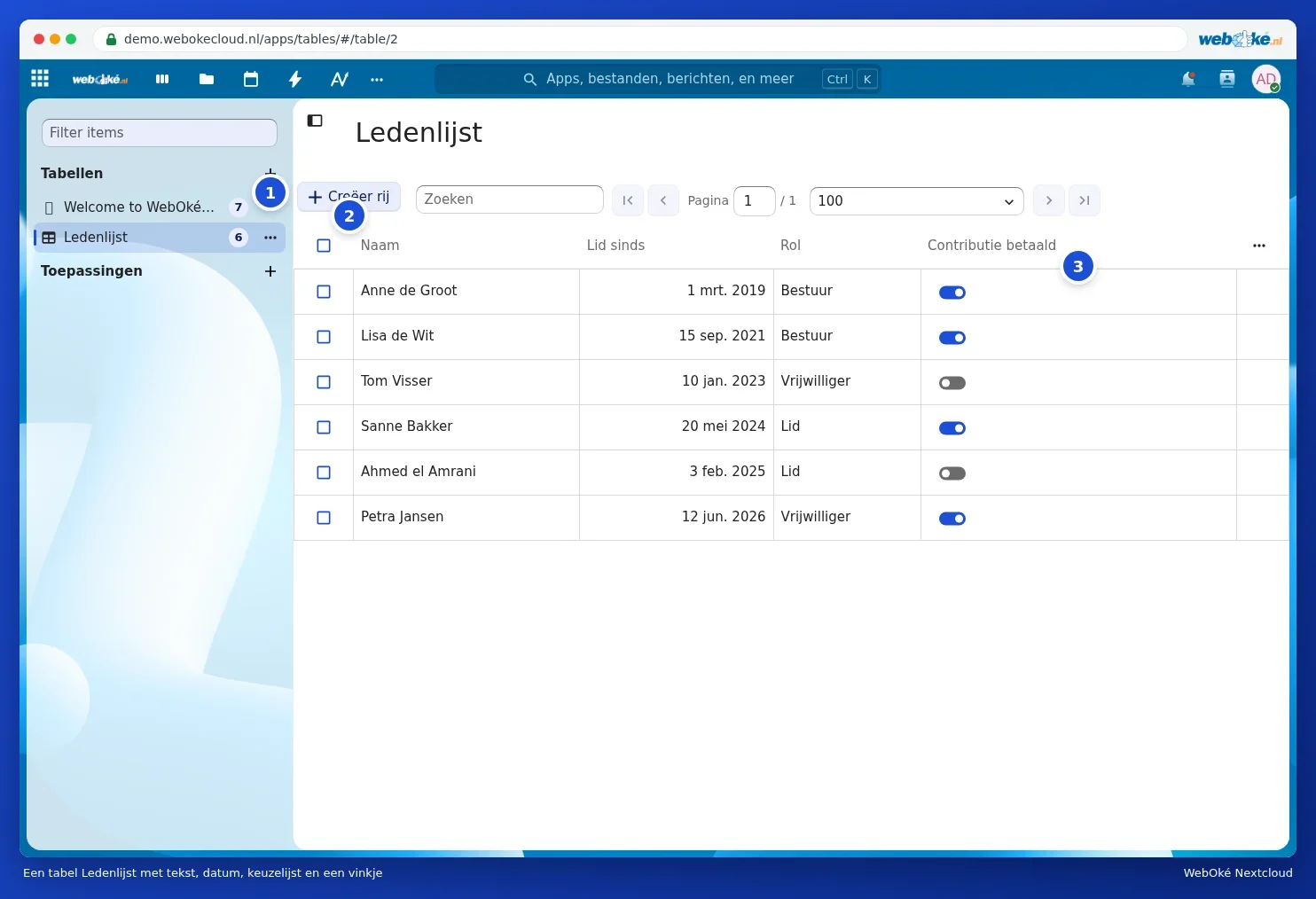
Creating a table
- Open Tables via the app menu.
- Click the plus icon next to Tables (1).
- Choose a name and a template, or start with an empty table (Custom table). There are templates for, among others, a to-do list, members, customers and holiday requests. With Import table, you create a table from an existing csv or Excel file.
- Click Create table.

Columns and rows
- You add a column via the three dots above the top right of the table. You choose the type: text, number, date, dropdown list, checkbox, link or a star rating.
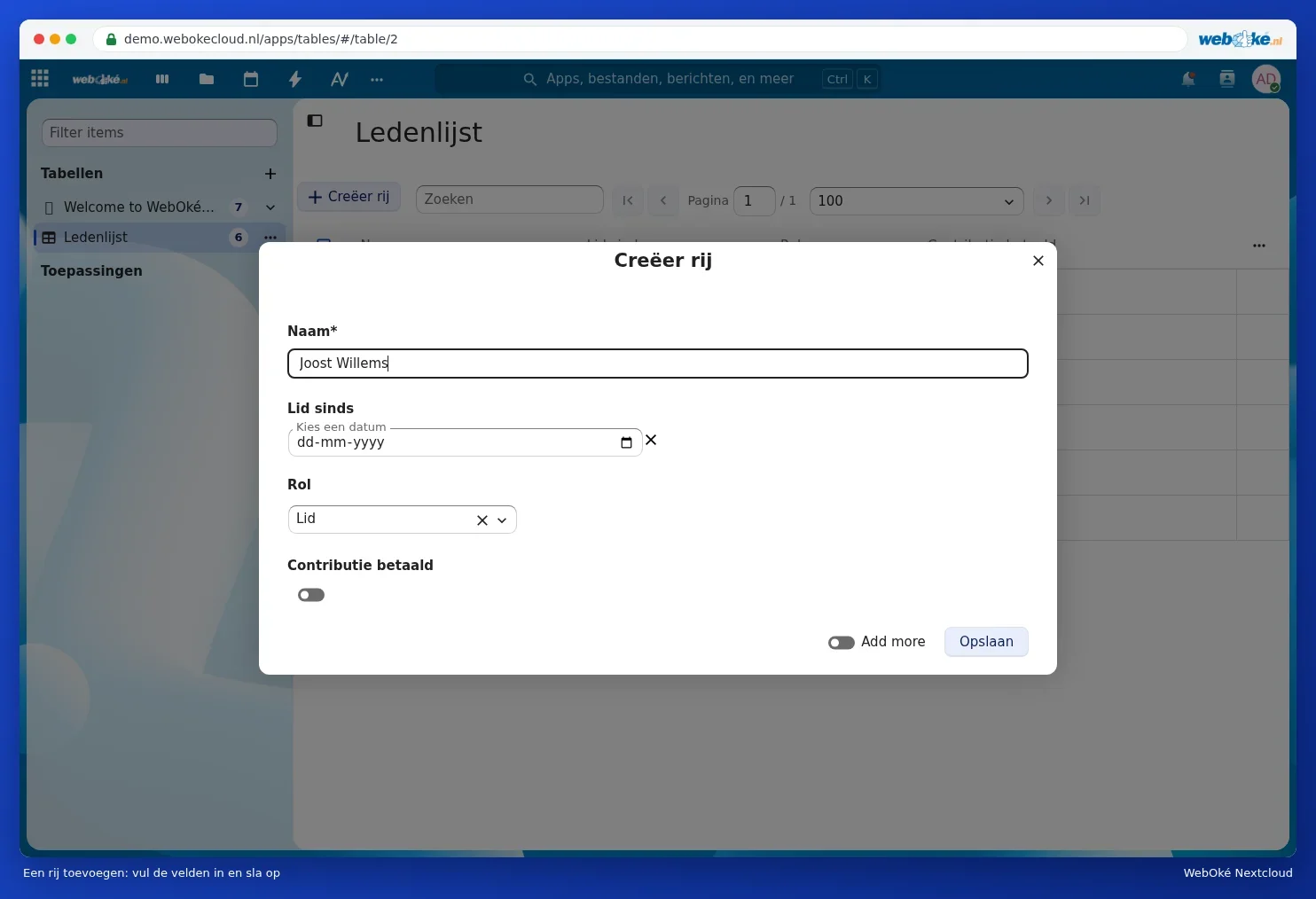
- With Create row (2), you add a line. Fill in the fields and click Save. A field with an asterisk is required.
- Click a column heading (3) to sort or filter.
Views
A view is a filtered or sorted section of your table, for example only the members who haven't paid yet. You create a view via the three dots next to the table in the list on the left. The view then appears below the table. You can share views separately.
Sharing
Via the three dots next to the table, you share it with people, groups or teams in your Nextcloud. You choose whether they may only read, may add rows or may also manage the columns. Anyone without their own Office licence can't open Tables.
Tip: want to calculate with the numbers, create charts or print the list? Export the table as a csv file and open it in Euro-Office. See the Euro-Office manual.