
Chapter 9 · 9.10
Calendar and contacts on Android with DAVx5
Android can't work with your Nextcloud calendar and contacts on its own. For that, you use the DAVx5 app. It fetches your calendars, contacts and tasks and puts them into your phone's regular apps, such as Google Calendar, Samsung Calendar or the Contacts app. Anything you change on your phone also goes back to your Nextcloud.
Installing DAVx5
| Where | Cost |
|---|---|
| Google Play | Paid app (a one-off payment of a few euros) |
| F-Droid | Free |
You'll also find the link on our download page www.weboke.nl/download, under Nextcloud. Want your tasks on your phone too? Then first install a tasks app such as Tasks.org (see Tasks on your phone: Reminders on the iPhone, Tasks.org on Android), and install DAVx5 afterwards.
Method 1: logging in with Nextcloud (recommended)
With this method, you log in via your own Nextcloud's login screen, using your login code. DAVx5 then creates an app password itself. So you don't need to type anything in yourself.
- Open DAVx5 and give the app permission for your calendars and contacts. Also let DAVx5 run outside battery optimisation if the app asks for this, otherwise syncing will stop.
- Tap the plus button to add an account.
- Choose the login method for Nextcloud.
- Enter your Nextcloud's address, with https:// in front of it, for example https://yourname.webokecloud.nl, and continue.
- Your browser opens your WebOké Nextcloud's login screen. Click Login, log in with your username, your password and the login code, and click Grant access.
- Back in DAVx5: give the account a name. If you use your email address, invitations will look right. Tap Create account.
- Open the account in DAVx5. On the CardDAV tab, tick the address books, and on the CalDAV tab, tick the calendars and task lists.
- Tap to sync. After a minute, your appointments and contacts will be on your phone.
Tip: already have the Nextcloud app on your phone? In its settings, you'll find the option Sync calendar and contacts. This opens DAVx5 and fills in your details for you. See The Nextcloud app on Android.
Method 2: with address, username and app password
Doesn't method 1 work, for example because the browser doesn't switch back to DAVx5? Then use an app password.
- Log in to your WebOké Nextcloud on your computer, click your profile picture in the top right and choose Settings.
- Click Security on the left and scroll to Devices & sessions.
- Under App name, enter a recognisable name (1), for example Android calendar, and click Create new app password (2). Your Nextcloud may ask for your regular password again.
- You'll now see your Login (your username) and a long Password. Keep this window open: you'll need it in a moment. The password is only shown once.

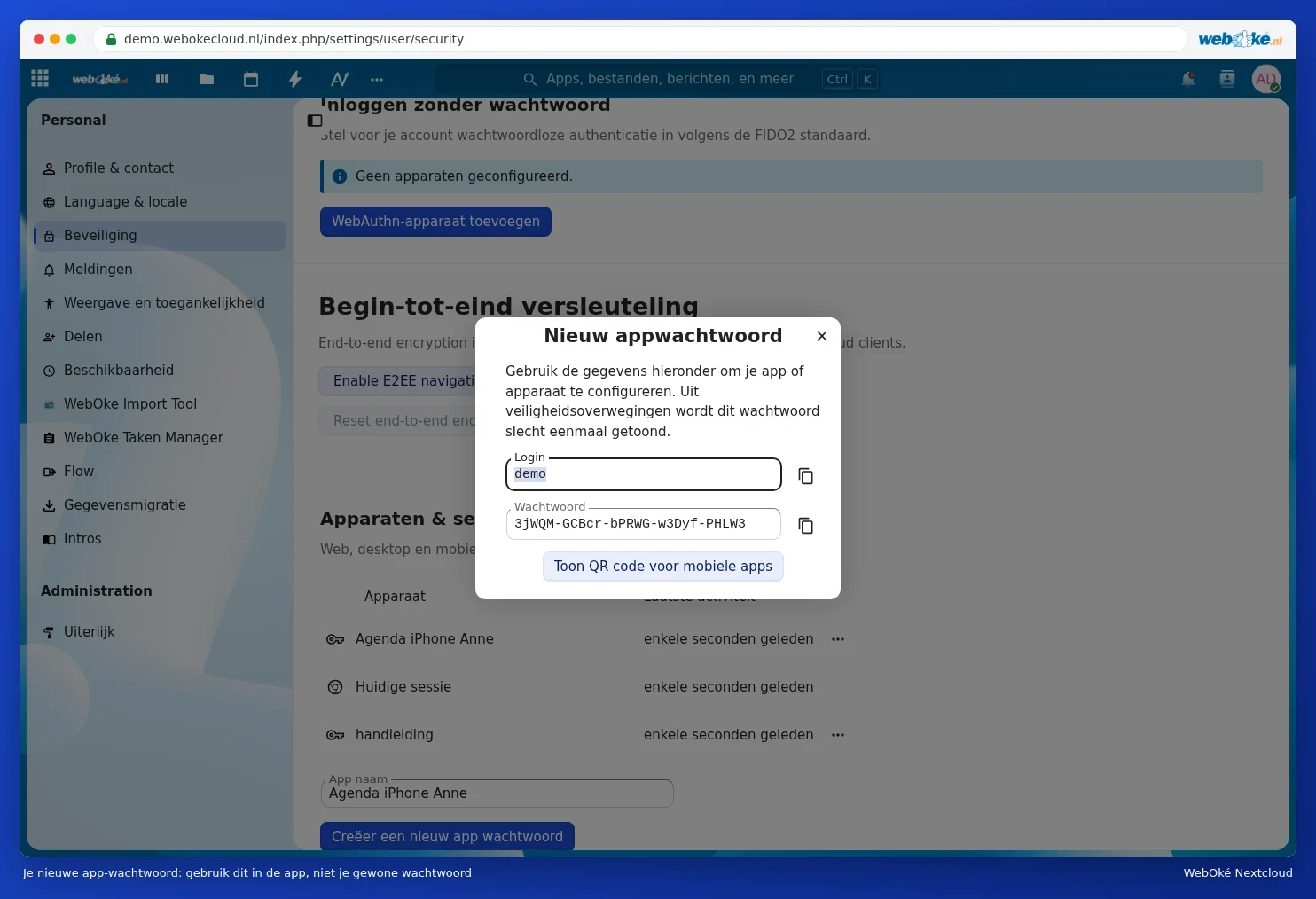
- In DAVx5, tap the plus button and choose to log in with a URL and username.
- Enter the details from the table below and continue.
- Create the account and tick the calendars and address books as in method 1.
| Field in DAVx5 | What do you enter? |
|---|---|
| Base URL | https://<your-address>/remote.php/dav |
| Username | Your username |
| Password | The app password |
In this article, replace <your-address> with the address you use to open your Nextcloud in a browser (without https://), for example yourname.webokecloud.nl or cloud.yourcompany.com. Replace <username> with your username.
Seeing your calendars in the calendar app
Open your calendar app (for example Google Calendar or Samsung Calendar) and look in the menu for the list of calendars. Your Nextcloud calendars appear under the name of your DAVx5 account. Switch them on. In Google Calendar, you can then choose a separate colour for each calendar.
Creating a new appointment on your phone? Choose your Nextcloud calendar at the top of the appointment, otherwise it'll end up in your Google calendar.
Useful settings in DAVx5
| Setting | Advice |
|---|---|
| Sync interval | Every 15 or 30 minutes is a good choice. Shorter intervals use more battery. |
| Battery optimisation | Turn this off for DAVx5, otherwise Android will shut the app down. Samsung, Xiaomi and Huawei sometimes have extra settings for this. |
| Wi-Fi only | Only turn this on if you want to save mobile data; you then won't see changes while out and about. |
| Contact groups | Leave the default setting unless you don't see your groups properly on your phone. |
Not working? See Calendar or contacts don't show up on the phone. Your tasks on Android: Tasks on your phone: Reminders on the iPhone, Tasks.org on Android.