
Chapter 2 · 2.3
The cart: changing, removing and discount codes
Watch it in a short video
Watch it in a short video
In the cart you see everything you're about to order. You can still change everything here. Your order is only final once you pay.
You reach the cart via Continue ordering in the order popup, via the cart icon at the top right of the site, or via Open cart.
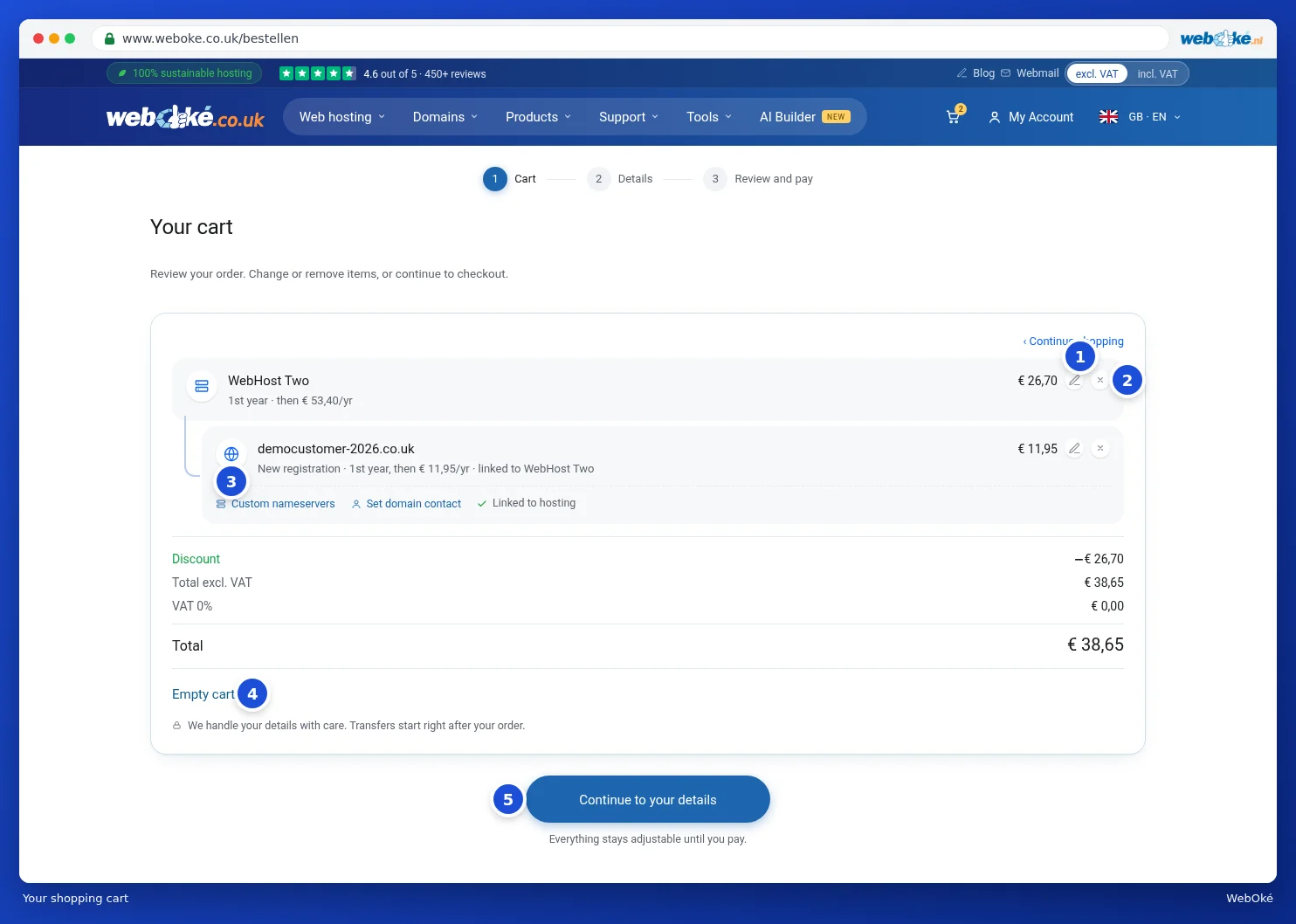
At the top you see the three steps of ordering: Cart, Details and Review and pay. For each item you see what it costs in the first year and what it costs afterwards. A domain that belongs to a package is shown indented underneath it, with linked to and the name of the package.
Changing or removing something
- Click the pencil icon (1) to change an item. For a package, the order popup opens, where you can change the term or the domain, for example. Then click Save. For a domain, the window where you set up the domain opens, see Setting up your domain: nameservers, linking to your package and the owner.
- Click the cross icon (2) to remove an item from your cart.
- Under a domain you'll find shortcut buttons (3): Custom nameservers, Set domain contact and Link to hosting. These take you straight to the right part of the domain window. If the domain is already linked, you'll see Linked to hosting instead.
- Want to start over? Click Empty cart (4) and confirm.
- Done? Click Continue to your details (5). See Filling in your details (private or business, VAT number).
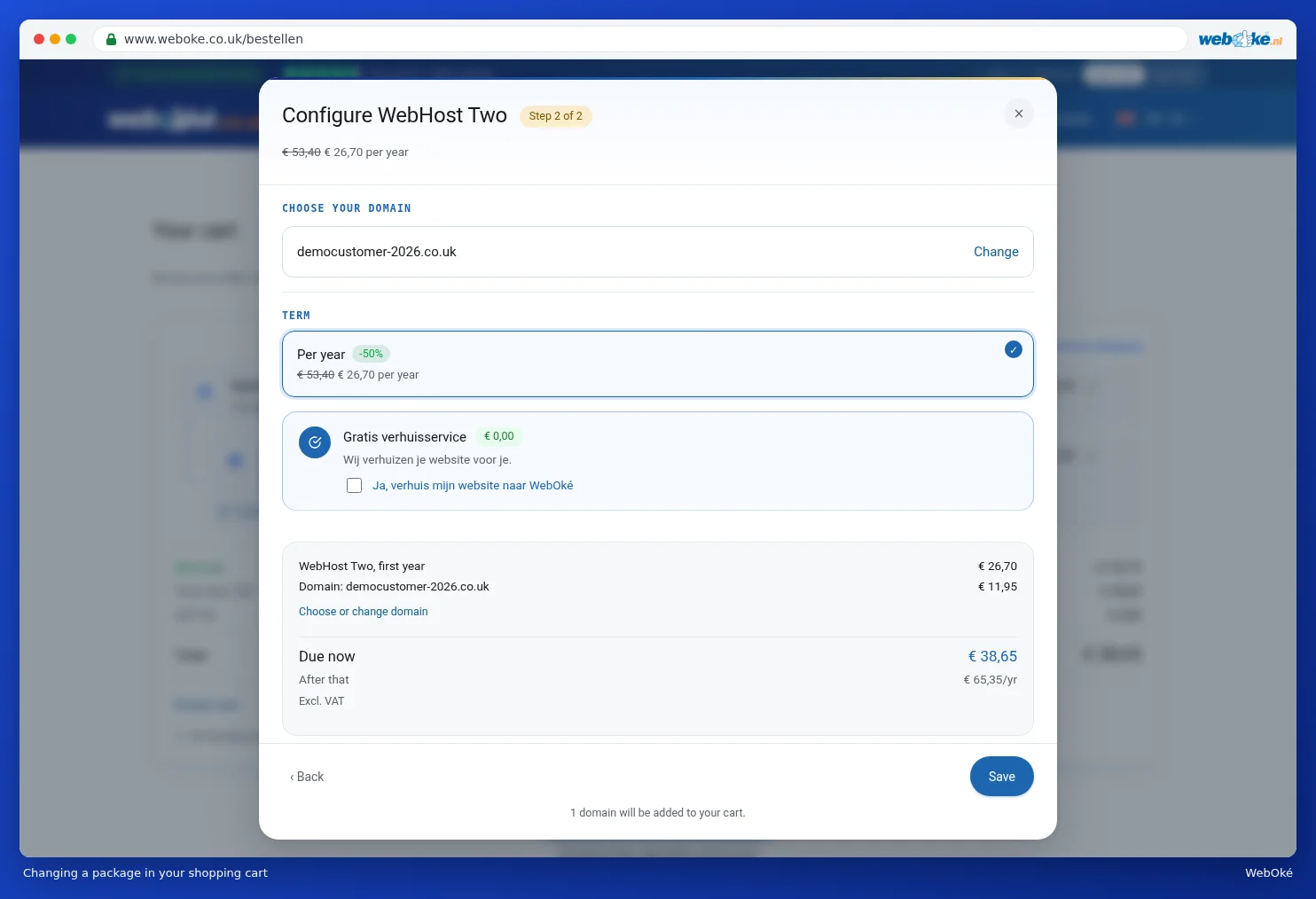
Want to order something else too? Click Continue shopping. Your cart stays as it is.
Prices and VAT
Below the items you'll find the total. Any discount is shown on a separate line, just like the VAT. On the following steps you'll see the Your order block on the right. There you can switch between excl. VAT and incl. VAT to change how you see the prices (3 in the image below).
Using a discount code
Do you have a discount code, for example from an email from us? You enter it at the Details or Review and pay step.
- On the right, under Your order, click Discount code?
- Type the code in the Discount code field (1).
- Click Apply (2). If the code is valid, you'll see Discount applied. and the discount will appear in the overview.

If you order via the Order now button on a package page with a welcome discount, that discount is often applied automatically. You can remove a discount with the cross icon after the Discount line.
Please note: do you get a message saying we don't recognise the discount code or that it doesn't apply to your cart? Check that you've entered the code correctly and that it applies to the products in your cart.