
Chapter 13 · 13.4
Contact without an account (guest ticket)
You can also reach us if you don't (yet) have an account, or if you can't log in. In that case, use the ticket form on the website. You'll get your answer by email.
How to ask a question without an account
- On the website, choose Contact us from the Support menu. You'll arrive at the New support ticket screen.
- Fill in your Name (1) and your Email address (2). We'll send our replies to this address, so check it carefully.
- Fill in the Subject (3).
- Under What is it about? (4), choose the type of question. If you want to order something or have a question about a package, choose Sales question.
- Write your question under Your message (5). You can add an attachment using Add attachment.
- Tick the box next to I'm not a robot.
- Click Submit a ticket (6).

You'll then see your ticket number. You'll also get a confirmation by email. Our replies will come by email.
This article might already help
As soon as you type a subject, we'll search the knowledge base for you. Below the field, This article might already help you appears with a few articles (1). An article opens in a new tab, so your completed form stays as it is.
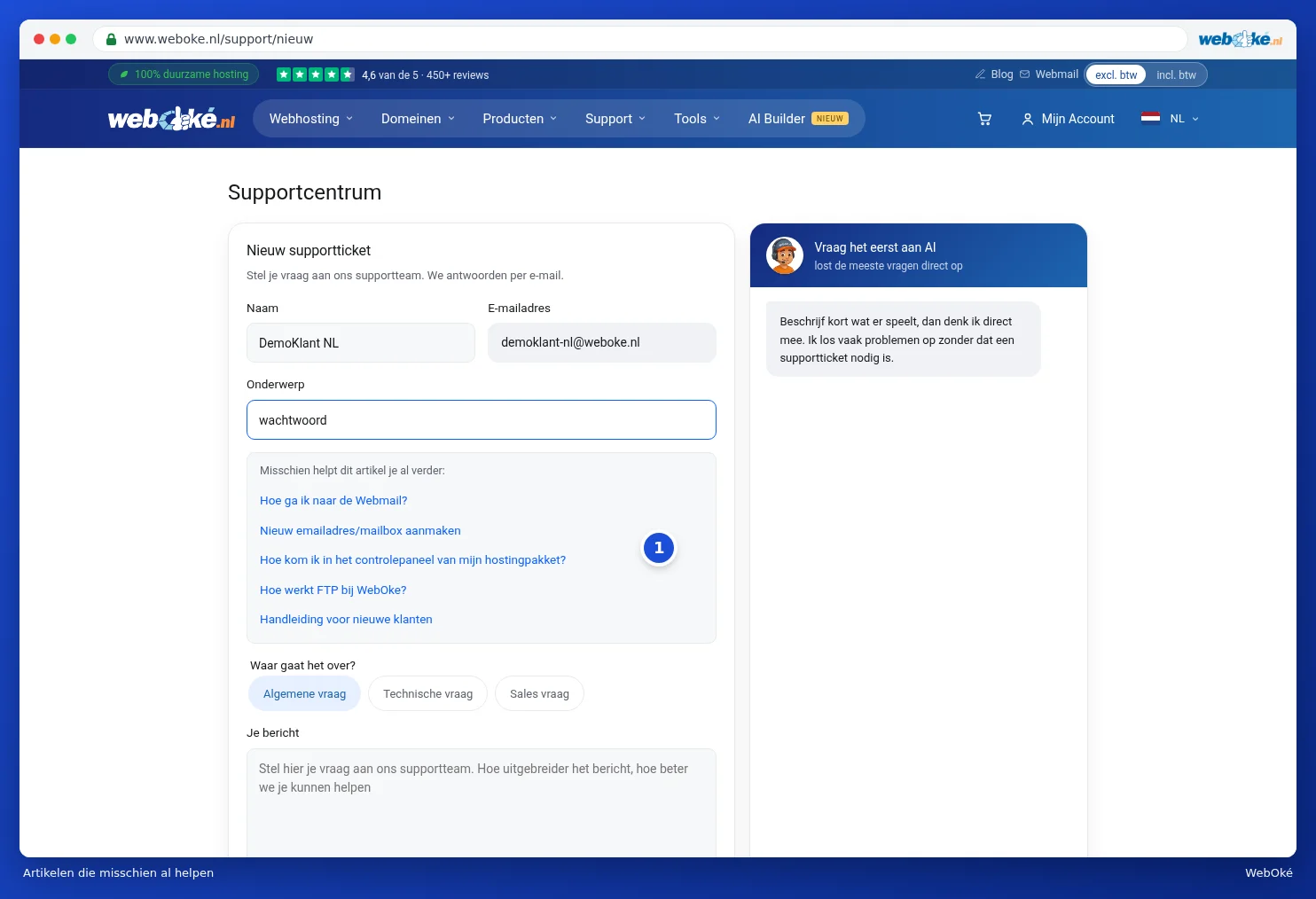
On the right of the screen, you'll also find the Ask the AI first box. There, you can ask the AI assistant your question, which solves many questions straight away.
Replying to your ticket
Every email about your ticket contains a personal link. Use that link to open the ticket on our website. There, you'll see the whole conversation, you can reply and add attachments, and you can close the ticket with Close ticket. A new reply reopens the ticket.
Please note: don't share the link from the email with others. Anyone with the link can read the ticket.
Good to know
- Already have an account? Then it's better to log in and submit the ticket via the Support Centre (Submitting a ticket). That way, we can immediately see which package it concerns, and the ticket will appear with your other tickets. The Log in link below the form takes you there.
- If you submit several tickets in quick succession, we'll ask you to wait a moment before sending another one.
- Can't log in because you've lost your password? Try Forgot password first. See Setting, changing or forgetting your password.