Adding or changing an SPF record in DirectAdmin
Every hosting package has an SPF record in its DNS by default, which ensures that email is "allowed" to be sent from our server.
Always make sure there is no more than one SPF record in the DNS.
In this article we explain how to add a new SPF record or change the existing record.
- Log in to DirectAdmin. Not sure how? Click here
- Click 'DNS Management' 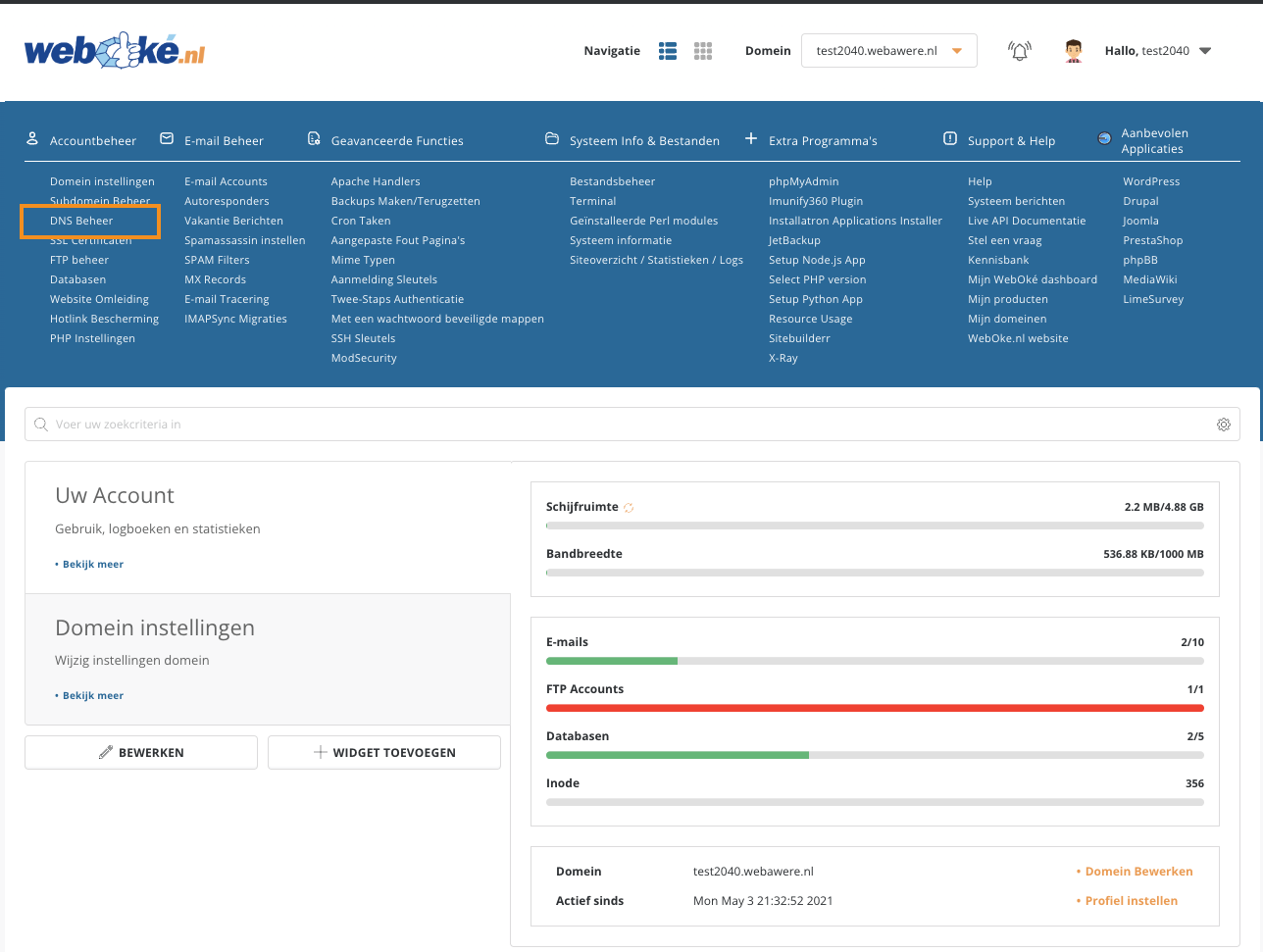
- Click 'Add Record', or click the pencil icon next to the existing SPF record to change it.
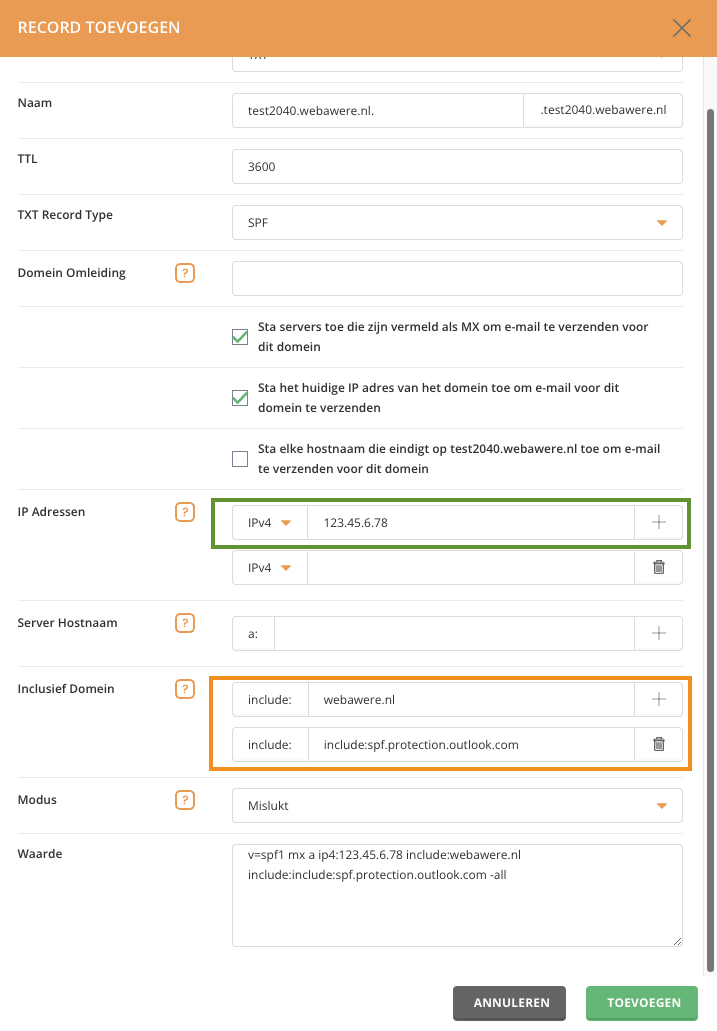
- On this screen we recommend leaving the name and all tick boxes as they are.
- Under 'IP Addresses' you can enter a specific IP address of a server that is allowed to send email on behalf of your domain.
- Under 'Include Domain' you can enter the host name of the server that is allowed to send email on behalf of your domain. The record already contains include:webawere.nl by default. We recommend always keeping it, even if your email runs through another provider. Click the plus icon to add more host names to the record. The screenshot shows what this looks like if, for example, the domain's email runs through Microsoft Exchange.
- At the bottom, under 'Value', you can see what the complete record will look like.